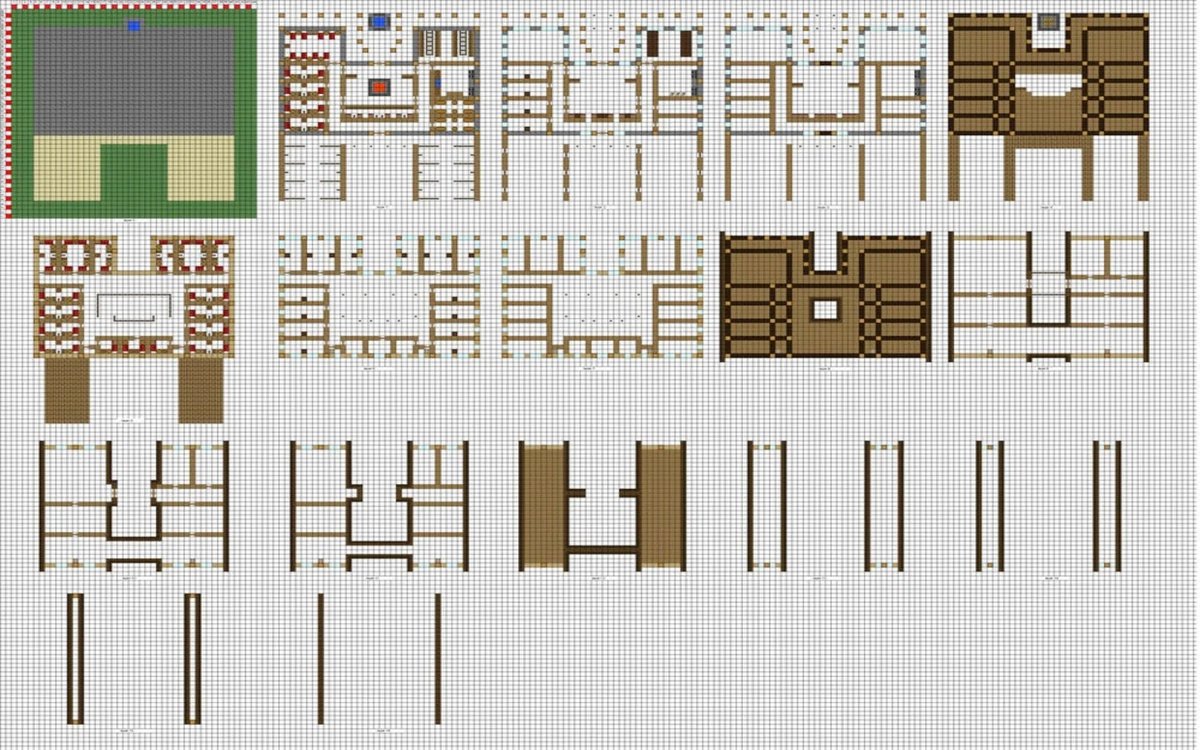
Ever dreamed of perfectly replicating that intricate build you saw online, or maybe just tired of manually placing thousands of blocks for your mega-base in Minecraft? The secret to transforming your building workflow from tedious to triumphant lies in Creating and Saving Custom Blueprints in Minecraft. While the vanilla game might not offer a dedicated "blueprint" button, a vibrant world of mods makes this powerful functionality not just possible, but incredibly intuitive.
Imagine designing a complex redstone contraption or a sprawling castle, then saving its exact structure to be instantly recreated, imported, or shared with friends. That's the magic of custom blueprints – they turn your most ambitious architectural visions into reusable templates, saving you countless hours and ensuring flawless execution every time.
At a Glance: Blueprinting Your Minecraft World
- No Vanilla Blueprints: Minecraft doesn't have native blueprint functionality; you'll need mods.
- Two Key Players: Litematica (Java Edition) and BlockPrints (Forge/Fabric) are top choices.
- Litematica for Precision: Ideal for personal use, precise area selection, and creating local schematic files.
- BlockPrints for Sharing: Built for collaboration, uploading to a web platform, and sharing builds with unique codes.
- Installation Required: Both mods need specific loaders (Fabric for Litematica, Forge/Fabric for BlockPrints) and their dependencies.
- Save Time & Effort: Blueprints simplify large, repetitive, or complex builds, allowing for consistent results.
Why Every Serious Builder Needs Minecraft Blueprints
Let's be honest: building in Minecraft is often a labor of love, but it can also be a massive time sink. Whether you're constructing a grand cathedral, a complex farm, or an entire city, repetitive tasks and the sheer scale of blocks can be daunting. That's where blueprints come in.
Think of blueprints as your digital construction plans. They capture the exact block-for-block layout of any structure you define. This isn't just about copying and pasting; it's about empowerment. Blueprints offer:
- Efficiency: Build once, deploy many times. No more endless manual repetition.
- Accuracy: Eliminate misplacements and ensure every build is identical to the original design.
- Scalability: Tackle massive projects by breaking them down into manageable, repeatable components.
- Collaboration: Easily share your designs with others, allowing them to recreate your masterpieces in their own worlds.
- Experimentation: Save different versions of a design, iterate, and refine without fear of losing your progress.
Without these tools, you're essentially redrawing the same complex schematic by hand every single time. With them, you gain the power to automate and standardize your building process, freeing up mental energy for new creative endeavors.
The Modding Mandate: Why Blueprints Aren't Vanilla
Before we dive into the "how-to," it's crucial to understand a fundamental truth: Minecraft does not natively support creating or saving custom blueprints. This functionality, while incredibly useful, falls outside the scope of the base game. To unlock this power, you'll need to venture into the world of Minecraft mods.
Mods are community-created additions that enhance or change the game. For blueprints, these mods act as sophisticated in-game CAD (Computer-Aided Design) tools, allowing you to select areas, save them as files, and then project those files back into your world as ghost outlines for easy construction.
Don't let the word "mod" intimidate you. While installation requires a few steps, modern mod loaders have made the process surprisingly user-friendly. We'll walk you through the specifics for the most popular and effective blueprinting solutions available today.
Litematica: The Gold Standard for Java Edition Blueprints
For Java Edition players, Litematica stands out as the premier schematic mod. Developed by masa, it's renowned for its precision, extensive features, and user-friendly interface. Litematica allows you to create highly accurate "schematics" (its term for blueprints), visualize them as ghost blocks in your world, and even get material lists for construction.
Before you can start creating, you need to get Litematica up and running.
Installing Litematica (Java Edition with Fabric)
Litematica requires the Fabric mod loader. Here's a step-by-step guide:
- Run the Fabric Installer: First, head to the Fabric website and download the installer. Run it, making sure to select your desired Minecraft version. This will create a new "Fabric Loader" profile in your Minecraft Launcher.
- Download Dependencies: Litematica isn't a standalone mod; it relies on a couple of core libraries:
- Fabric API: This is a common library for many Fabric mods. Download the version matching your Minecraft version from CurseForge.
- MaLiLib: This is Masa's client-side library, also required for Litematica to function. Download the correct version from CurseForge.
- Place Files in Your
modsFolder: Now, you need to put the downloaded.jarfiles into your Minecraftmodsfolder.
- Windows: Press
Win + R, type%appdata%\.minecraft\mods, and hit Enter. If you don't see amodsfolder, simply create one. - Mac: Open Finder, press
Cmd + Shift + G, type~/Library/Application Support/minecraft/mods, and hit Enter. Again, create themodsfolder if it's missing. - Drag and drop the
fabric-api-*.jarandmalilib-*.jarfiles into thismodsfolder.
- Download Litematica: Finally, download the Litematica mod itself from CurseForge. Make sure the version matches your Minecraft and Fabric Loader versions. Place this
litematica-*.jarfile into the samemodsfolder. - Launch Minecraft: Open your Minecraft Launcher, select the "Fabric Loader" profile (it might be named something like "fabric-loader-1.XX.X"), and click Play. If everything is installed correctly, you should see Litematica in your mod list (accessible via the main menu).
Creating Your First Litematica Blueprint (Saving a Build)
Once Litematica is installed, saving your builds is surprisingly simple. This process captures a defined volume of blocks into a .litematic file.
- Equip an Ordinary Stick: Yes, a plain old stick. This humble item becomes your powerful selection tool with Litematica.
- Activate Area Selection: Hold down the
Ctrlkey (default) and scroll your mouse wheel. You'll see Litematica's various modes cycle through in the bottom left of your screen. Continue scrolling until it displays "Area Selection" mode. - Define Your Build's Corners:
- Go to one corner of the build you want to save.
- Right-click with the stick. You'll see a selection box appear.
- Move to the diagonally opposite corner of your build (e.g., if you started at the bottom-north-west, go to the top-south-east).
- Right-click again with the stick.
- Your entire build should now be highlighted with a clear, often yellow, bounding box. If the box doesn't fully encompass your build, repeat the right-clicks, adjusting your starting and ending points. You can also adjust the selection manually through the in-game GUI later.
- Open the Litematica Menu: Press the
Mkey (default hotkey) to open the main Litematica menu. - Access Area Editor: In the main menu, navigate to "Area Editor."
- Set Parameters and Name:
- In the Area Editor, you'll see options to refine your selection, but for most purposes, the initial corner clicks are sufficient.
- Crucially, you'll find a field to "Give it a name." Type a descriptive name for your schematic (e.g., "MyStarterHouse" or "MegaFarmV2").
- Click the "Save Schematic" button within this menu.
- Final Save Confirmation: Litematica will take you to a "Save Schematics" screen. Your chosen name should pre-populate. Review it, and then click the final "Save Schematic" button.
Congratulations! Your build is now saved as a.litematicfile in yourschematicsfolder (located within your.minecraftdirectory). This file can be imported into any world with Litematica installed, allowing you to visualize and reconstruct your design.
Beyond Saving: Loading and Using Litematica Schematics
Once saved, a schematic isn't just a file; it's a build waiting to happen. To use your schematic, you'd typically:
- Load Schematic: Press
M, go to "Load Schematics," select your file, and click "Load." - Place Schematic: Back in-game, you can then manipulate the loaded schematic (move, rotate, mirror) until it's perfectly positioned.
- Build with Ghost Blocks: Litematica projects a transparent "ghost" outline of your build, showing you exactly where each block goes. It can even highlight missing or incorrectly placed blocks, making construction incredibly foolproof.
- Material List: Another powerful feature: Litematica can generate a comprehensive list of all the materials you'll need to complete your schematic.
For those looking to explore other options beyond Litematica, or perhaps want a more social blueprinting experience, there's another excellent mod worth exploring. If you're eager to learn more about the diverse world of blueprinting tools, our comprehensive Blueprint mod for Minecraft guide offers an in-depth look at various options available to builders.
BlockPrints: Blueprinting for Collaboration and Sharing
While Litematica excels at client-side precision and personal use, BlockPrints offers a compelling alternative, particularly if sharing and a web-based workflow are priorities. Available for both Forge and Fabric, BlockPrints integrates seamlessly with Blockprints.io, a platform for uploading, sharing, and downloading builds.
BlockPrints is designed for a more connected blueprinting experience, allowing you to easily share your creations with the wider Minecraft community or specific friends.
Key Features of BlockPrints
- Online Integration: Directly upload your builds (publicly or privately) to Blockprints.io from within the game.
- Shareable Codes: Each uploaded schematic gets a unique code, making it easy to share specific builds with other players without passing files.
- Multi-Structure Visualization: Visualize multiple blueprints in-world simultaneously, perfect for planning large, interconnected complexes.
- Create Mod Compatibility: Works well with the popular Create mod, even supporting "super glue" contraptions for more dynamic survival builds.
- Building Gadgets JSON Export: Easily copy JSON data from Blockprints.io for use with the Building Gadgets mod, offering another layer of automated construction.
- In-Game UI: Access all features through a convenient in-game UI, usually with the
~(tilde) hotkey. - Comprehensive Workflow: Capture builds, upload them, manage your favorites, edit existing designs, and download public or shared schematics directly from the game.
How BlockPrints Changes the Game for Collaboration
Imagine you're building a city with friends. Instead of sending .litematic files back and forth, you can simply upload your latest house design to Blockprints.io, give your friends the code, and they can instantly load it into their world. This streamlines collaborative projects significantly and fosters a vibrant community of shared designs.
The process of capturing a build with BlockPrints is similar in principle to Litematica: you'll define an area, give it a name, and then initiate the save/upload process through the mod's interface. The main difference lies in the destination – instead of just a local file, BlockPrints makes it effortless to push your design to a public or private online repository.
Choosing Your Blueprinting Path: Litematica vs. BlockPrints
Both Litematica and BlockPrints are excellent tools, but they cater to slightly different needs:
- Go with Litematica if:
- You primarily build for yourself or a small, private group.
- You need extremely precise control over selection, placement, and rotation.
- You value a highly mature and feature-rich client-side experience.
- You're comfortable handling local
.litematicfiles. - Your focus is on detailed construction assistance, including material lists and block-by-block guidance.
- Consider BlockPrints if:
- Sharing your builds with a wider community is a priority.
- You're working on collaborative projects where easy sharing via codes is beneficial.
- You appreciate a web-integrated platform for managing and browsing blueprints.
- You want compatibility with other automation mods like Create or Building Gadgets.
- You prefer a more streamlined upload-and-share workflow over local file management.
Many players even use both! Litematica for intricate personal builds, and BlockPrints for designs they intend to share widely. The best choice often depends on the specific project and your personal building style.
Best Practices for Blueprinting Your Builds
Using blueprint mods effectively isn't just about knowing the buttons; it's about smart planning.
- Plan Your Selection: Before you start clicking, consider the exact boundaries of your build. Do you want to include the foundation? Any surrounding terrain? Precision here saves headaches later.
- Name Your Schematics Wisely: "House1" isn't helpful when you have twenty houses. Use descriptive names like "OakStarterHouse_V3" or "MegaWheatFarm_Compact." Add dates or version numbers for iteration.
- Organize Your Schematics: Create subfolders within your
schematicsdirectory for different project types (e.g., "Farms," "Houses," "Redstone"). This makes finding specific blueprints much easier. - Test Small First: If you're new to blueprinting, start by saving a small, simple structure. This helps you get comfortable with the mod's interface and workflow before tackling your magnum opus.
- Backup Your World (and Schematics): Always good practice! Before major modding or building, back up your Minecraft worlds. And periodically back up your
schematicsfolder to an external drive. - Understand Coordinates: Knowing how coordinates work in Minecraft (X, Y, Z) helps immensely when moving and positioning blueprints, especially in Litematica. The Y-axis (height) is particularly important for correct vertical alignment.
- Communicate with Others: If you're sharing blueprints on a server, make sure everyone understands which mod is being used and how to load the schematics.
Common Questions and Misconceptions About Minecraft Blueprints
Minecraft blueprints, being a modded feature, often come with a few common questions.
"Can I create blueprints in vanilla Minecraft?"
No. This is the most common misconception. The base game of Minecraft does not offer any functionality to save or load structural templates. All blueprinting requires third-party modifications like Litematica or BlockPrints.
"Are blueprints considered cheating?"
This depends entirely on context and server rules.
- Single-player: In your own world, it's never cheating. It's a tool to enhance your gameplay.
- Multiplayer (private server/friends): It's generally accepted if all players agree and understand it's a tool for convenience. Many community servers even allow or encourage schematic mods.
- Public servers (PvP, Factions, specific minigames): On competitive or economy-driven servers, using blueprints could be considered cheating as it provides a significant advantage in construction speed and resource planning. Always check server rules before using any mod.
"What about 'structure blocks' in vanilla Minecraft? Aren't those blueprints?"
Structure blocks are a vanilla feature, primarily used by map makers, command block enthusiasts, and for in-game generated structures. They allow you to save and load small to medium-sized structures within the same world. While they technically save a "blueprint" of a structure, they are much more limited than modded solutions:
- They are tied to specific locations in a world.
- They don't easily export into shareable files (like
.litematicor Blockprints.io entries). - They require command block knowledge to use effectively for saving/loading.
So, while related, they are not the user-friendly, cross-world blueprinting tools offered by mods.
"Are there other blueprint mods besides Litematica and BlockPrints?"
Yes, the modding community is vast! Other notable mods include:
- Schematica: An older, popular mod that Litematica is essentially a spiritual successor to, offering similar functionality.
- Building Gadgets: Focuses more on automated building (placing blocks based on patterns or loaded schematics) rather than just saving them.
- Effortless Building: A different approach, offering ghost blocks and creative tools, but not traditional schematic saving in the same way.
Litematica and BlockPrints, however, remain among the most widely adopted and robust solutions specifically for creating and saving custom blueprints for general construction purposes.
"Will using these mods break my game or corrupt my world?"
Generally, no. Client-side mods like Litematica and BlockPrints primarily affect your game client's interface and rendering. They don't typically alter core game mechanics in a way that would corrupt worlds. However, any mod carries a tiny risk, so backing up your world is always a sensible precaution, especially before installing any new mod. Ensure you download mods from trusted sources like CurseForge.
The Next Block: Your Blueprint for Infinite Creativity
The journey of Creating and Saving Custom Blueprints in Minecraft is a game-changer for any serious builder. It transforms complex and repetitive tasks into streamlined processes, allowing you to focus on the joy of design and the satisfaction of seeing your grand visions come to life, block by perfect block.
Whether you choose the precise engineering of Litematica or the collaborative spirit of BlockPrints, you're gaining a powerful tool that will elevate your building experience. No longer will you be limited by the tedium of manual construction or the fear of losing an intricate design. Your builds become templates, your creations become shareable assets, and your time becomes your own.
So, download a mod, grab a stick, and start capturing your world. The blueprints of your next great Minecraft adventure are just a few clicks away. Happy building!